Table of contents
- What is git?
- Why should I use git?
- Where does git store information?
- Starting a repository
- Adding files to the “staging area”
- How do I commit changes?
- How can I check the state of a repository?
- How to empty the staging area?
- Display changes
- How can I view a repository’s history?
- Summary
What is git?
Git is a version control system, which is a tool that manages changes made to the files and directories in a project. Git isn’t just for programmers and engineers, any job that has versions that change over time can be managed with git.
Another advantage of git is that it eases collaboration, since its system is also able to integrate the work done by several people and keep the history of changes made by each collaborator. Git allows you to:
- Keep track of changes to files,
- Notice conflicts between changes made by different people,
- Synchronize files between different computers.

Why should I use git?
There are many benefits to version control, for data science one of the most important benefits is to ensure reproducibility and better team collaboration, allowing changes by multiple people to all be merged into one source. Another great advantage is that tracking the changes you make to your files, you can revert to specific versions should you ever need to.
Basic workflow
Where does git store information?
Each of your git projects has two parts: the files and directories that you create and edit directly, and the extra information that git records about the project’s history. The combination of these two things is called a repository.
Git stores all of its extra information in a directory called .git
located in the root directory of the repository.
Starting a repository
The command for starting a new repository, that is, telling Git that we want to use its version control system in our project, is git init. When running this command, the .git directory will be generated. A space known as “staging area” is also generated in RAM, which will temporarily save our files.
Adding files to the “staging area”
To indicate that we want to add a file to our repository, we use the
git add filename command. This is the first step in saving our changes.
If you want to add all the files that have changed, you can use git add .
to avoid listing the name of all the files.
How do I commit changes? store changes made to a file
Once the file we’re working on is added to the staging area (with git add) and we’ve made the changes we want to make, the command to permanently store all the changes is git commit. It always saves everything that is in the staging area as one unit.
When you commit changes, git requires you to enter a log message. This serves the same purpose as a comment in a program: it tells the next person to examine the repository why you made a change. The -m flag comes in handy for this purpose.
git commit -m "This is a comment about the changes made"
If you accidentally mistype a commit message, you can change it using the --amend flag.
git commit --amend - m "new message"
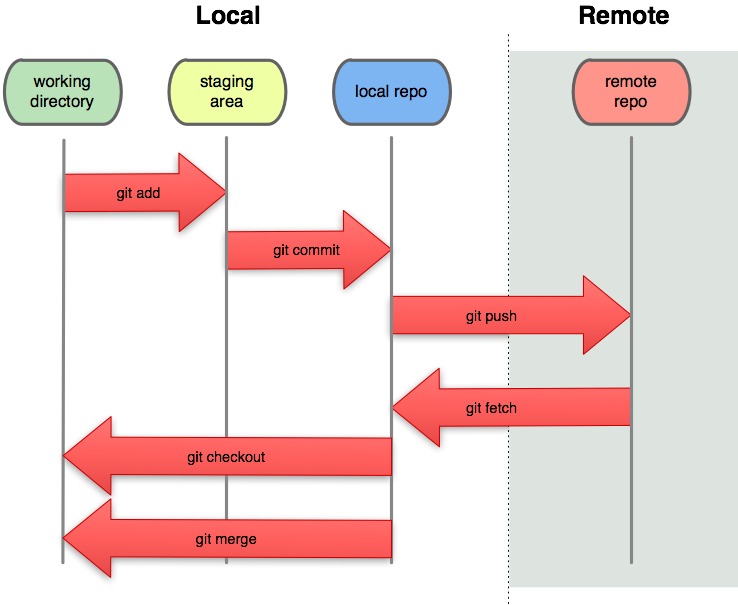
We have already explained that the staging area is the space in which git stores files with changes you want to save, but that haven’t been saved yet. Putting files in the staging area is like putting things in a box, while committing those changes is like putting that box in the mail: you can add more things to the box or take things out as often as you want, but once you put it in the mail, you can’t make further changes.
How can I check the state of a repository?
When you are using git, you will frequently want to check the status of your
repository. To do this, run the command git status, which displays a list
of the files that have been modified since the last time changes were saved.
git status shows you which files are in this staging area, and which files have changes that haven’t yet been put there.
In order to compare the file as it currently is to what you last committed, you can use git diff filename.
The command git diff without any file names will show you all the changes in your repository, while git diff directory will show you the changes to the
files in some directory.
How to empty the staging area?
The git reset HEAD command lets you remove files from the staging area and return them to their previous state.
Display changes
If you need to see what lines of code or lines of text have changed in the files that compose your repository (since the last commit), you can use the git show command, which shows the history of changes, when they were made, and by whom they were made.
How can I view a repository’s history?
The command git log is used to view the log of the project’s history. A project’s entire log can be overwhelming, so it’s often useful to inspect only
the changes to particular files or directories. You can do this using git log path, where path is the path to a specific file or directory.
Summary
Now you know
- What is a version control system and in particular what is the basic work flow of git,
- How to initiate a repository with
git init, - How to add files to the stage area with
git add, - How to store changes in your local repository with
git commit. - How to check the status of your repository with
git status,
In the next post I will talk about remote repositories and related services, such as github o gitlab.